Setting Up a Monorepo with pnpm and Turborepo
Step-by-step guide to setting up a monorepo with pnpm workspaces and Turborepo. Includes shared packages, and common mistakes.
You understand why monorepos exist and what Turborepo does. Now let us actually build one. This guide walks through setting up pnpm workspaces, creating shared packages, wiring up a Next.js frontend and Express backend, adding Turborepo for caching, and avoiding the common pitfalls.
Setting Up pnpm Workspaces
Before Turborepo enters the picture, you need pnpm workspaces. This is the feature that lets pnpm understand that your repository contains multiple packages and manage them together.
If you do not have pnpm installed:
npm install -g pnpmStep 1: Initialize the root project
mkdir my-monorepo
cd my-monorepo
pnpm init
This creates a root package.json. This file is special. It is the command center for your entire monorepo. You will not really install app dependencies here. Its job is to hold workspace-level dev tools and scripts.
Open package.json and add "private": true. This is important. It tells npm (and pnpm) that this root package should never be published.
{
  "name": "my-monorepo",
  "version": "1.0.0",
  "private": true
}
Step 2: Create pnpm-workspace.yaml
This file tells pnpm where your packages live. Create it at the root:
packages:
  - "apps/*"
  - "packages/*"
That glob pattern means: "every folder inside apps/ and every folder inside packages/ is a workspace package." pnpm will treat them all as part of the same workspace and manage their dependencies together.
Step 3: Create your folder structure
mkdir -p apps/web apps/api packages/types packages/utilsYour repo now looks like this:
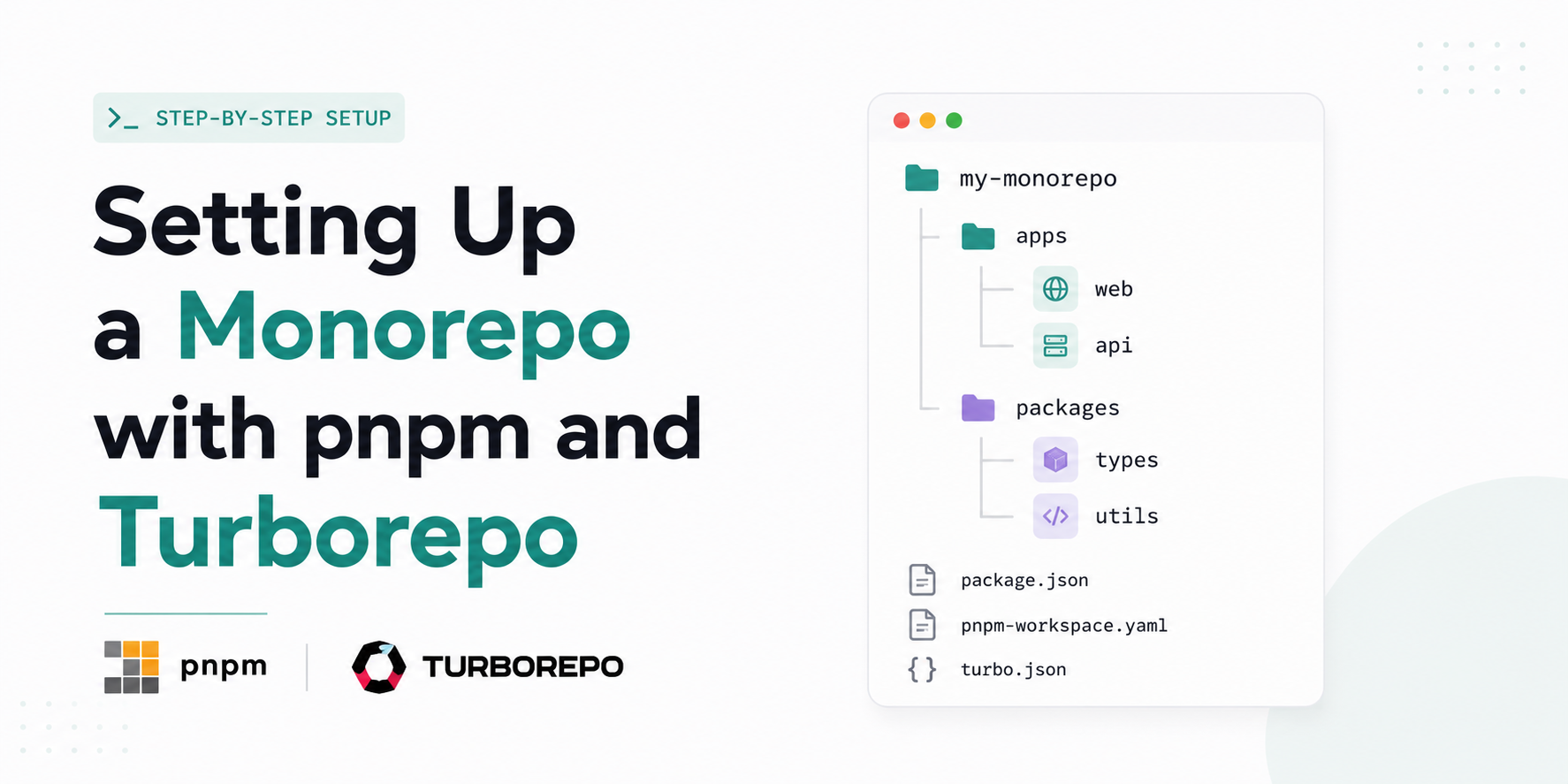
my-monorepo/
├── apps/
│   ├── web/
│   └── api/
├── packages/
│   ├── types/
│   └── utils/
├── package.json
└── pnpm-workspace.yaml
Setting Up the Packages
Each folder inside apps/ and packages/ needs its own package.json. The most important thing here is the name field. This is how packages reference each other inside the monorepo.
The convention is to use a scope prefix like @myapp/. It keeps names clear and avoids conflicts.
packages/types
cd packages/types
pnpm init
Edit package.json:
{
  "name": "@myapp/types",
  "version": "0.0.0",
  "private": true,
  "main": "./index.ts"
}
Create a simple index.ts:
// packages/types/index.ts

export interface User {
  id: string;
  name: string;
  email: string;
}

export interface ApiResponse<T> {
  data: T;
  success: boolean;
  message: string;
}
packages/utils
cd ../utils
pnpm init
Edit package.json:
{
  "name": "@myapp/utils",
  "version": "0.0.0",
  "private": true,
  "main": "./index.ts"
}
Create index.ts:
// packages/utils/index.ts

export function formatName(name: string): string {
  return name
    .trim()
    .toLowerCase()
    .replace(/\b\w/g, (l) => l.toUpperCase());
}

export function isValidEmail(email: string): boolean {
  return /^[^\s@]+@[^\s@]+\.[^\s@]+$/.test(email);
}
Setting Up the Apps
apps/api (Express Backend)
cd ../../apps/api
pnpm init
Edit package.json:
{
  "name": "@myapp/api",
  "version": "0.0.0",
  "private": true,
  "scripts": {
    "dev": "ts-node-dev src/index.ts",
    "build": "tsc",
    "start": "node dist/index.js"
  },
  "dependencies": {
    "@myapp/types": "workspace:*",
    "@myapp/utils": "workspace:*",
    "express": "^4.18.2"
  },
  "devDependencies": {
    "@types/express": "^4.17.21",
    "ts-node-dev": "^2.0.0",
    "typescript": "^5.3.3"
  }
}
Notice the workspace:* syntax. This is how you tell pnpm "use the local version of this package from the workspace." When pnpm sees workspace:*, it creates a symlink to the actual package folder instead of downloading anything from npm. That is the core of local package sharing in a monorepo.
Create src/index.ts:
// apps/api/src/index.ts
import express from "express";
import { User, ApiResponse } from "@myapp/types";
import { formatName, isValidEmail } from "@myapp/utils";

const app = express();
app.use(express.json());

app.get("/users", (req, res) => {
  const users: User[] = [
    { id: "1", name: formatName("john doe"), email: "john@example.com" },
    { id: "2", name: formatName("jane smith"), email: "jane@example.com" },
  ];

  const response: ApiResponse<User[]> = {
    data: users,
    success: true,
    message: "Users fetched successfully",
  };

  res.json(response);
});

app.listen(4000, () => {
  console.log("API running on http://localhost:4000");
});
apps/web (Next.js Frontend)
For the Next.js app, you can scaffold it directly:
cd ../web
pnpm create next-app . --typescript --tailwind --app --no-src-dir --import-alias "@/*"
After scaffolding, add the internal packages to its package.json:
{
  "name": "@myapp/web",
  "dependencies": {
    "@myapp/types": "workspace:*",
    "@myapp/utils": "workspace:*"
  }
}
Now you can import shared types directly inside your Next.js components:
// apps/web/app/page.tsx
import { User, ApiResponse } from "@myapp/types";
import { isValidEmail } from "@myapp/utils";

export default function Home() {
  const email = "test@example.com";

  return (
    <main>
      <h1>Welcome</h1>
      <p>Email valid: {isValidEmail(email) ? "Yes" : "No"}</p>
    </main>
  );
}
No npm publishing. No version syncing. Just import and use.
Installing All Dependencies
Go back to the root and run one command:
cd ../..
pnpm install
pnpm reads your pnpm-workspace.yaml, finds all packages, and installs their dependencies. It also creates the symlinks for all workspace:* references. After this runs, node_modules/@myapp/types points directly to packages/types on your disk.
node_modules/
└── @myapp/
    ├── types  -->  symlink to  packages/types/
    └── utils  -->  symlink to  packages/utils/
This means changes you make inside packages/types are instantly reflected everywhere that imports it. No reinstall needed.
Adding Turborepo
Now that the monorepo structure is working, it is time to make it fast.
Step 1: Install Turborepo at the root
pnpm add turbo -D -wThe -w flag means "install this at the workspace root." Without it, pnpm throws ERR_PNPM_ADDING_TO_ROOT and blocks the install.
Step 2: Create turbo.json
This is the Turborepo configuration file. Create it at the root:
{
  "$schema": "https://turbo.build/schema.json",
  "tasks": {
    "build": {
      "dependsOn": ["^build"],
      "outputs": [".next/**", "dist/**"]
    },
    "dev": {
      "cache": false,
      "persistent": true
    },
    "lint": {
      "dependsOn": ["^lint"]
    },
    "typecheck": {
      "dependsOn": ["^build"]
    }
  }
}
Let's break down what each piece does.
dependsOn: ["^build"]
The ^ symbol means "run this task in my dependencies first." So when you run build on apps/web, Turborepo sees that apps/web depends on @myapp/types and @myapp/utils. It builds those first, then builds apps/web. The order is always correct, automatically.
outputs
These are the folders Turborepo should cache. After a successful build, it saves these folders. On the next run, if nothing changed, it restores them from cache instead of rebuilding.
cache: false on dev
The dev task runs a long-lived development server. You never want that to be cached. Setting cache: false tells Turborepo to always run it fresh.
persistent: true on dev
This tells Turborepo that dev is a long-running task that does not exit on its own. Turborepo handles it differently from one-shot tasks like build.
Step 3: Update root package.json scripts
{
  "name": "my-monorepo",
  "version": "1.0.0",
  "private": true,
  "scripts": {
    "build": "turbo build",
    "dev": "turbo dev",
    "lint": "turbo lint",
    "typecheck": "turbo typecheck"
  },
  "devDependencies": {
    "turbo": "^2.9.0"
  }
}
Now when you run pnpm dev from the root, Turborepo fans out the dev script to every app that has one, starts them all in parallel, and shows you a clean unified output.
Running the Monorepo
Here are the commands you will use every day:
# Start all apps in development mode
pnpm dev

# Build everything (in the correct dependency order)
pnpm build

# Run a command in a specific package only
pnpm --filter @myapp/api dev
pnpm --filter @myapp/web build

# Add a dependency to a specific package
pnpm --filter @myapp/api add express
pnpm --filter @myapp/web add react-query

# Add a dev dependency to a specific package
pnpm --filter @myapp/types add -D typescript

# Add a dependency to the workspace root (shared tooling)
pnpm add -D -w eslint prettier
The --filter flag is one of the most important tools in a monorepo workflow. It lets you target individual packages without leaving the root directory.
What the Full Setup Looks Like
After everything is in place, here is the complete picture:
my-monorepo/
├── apps/
│   ├── api/
│   │   ├── src/
│   │   │   └── index.ts
│   │   ├── package.json          { "name": "@myapp/api" }
│   │   └── tsconfig.json
│   └── web/
│       ├── app/
│       │   └── page.tsx
│       ├── package.json          { "name": "@myapp/web" }
│       └── tsconfig.json
├── packages/
│   ├── types/
│   │   ├── index.ts
│   │   └── package.json          { "name": "@myapp/types" }
│   └── utils/
│       ├── index.ts
│       └── package.json          { "name": "@myapp/utils" }
├── node_modules/                 (hoisted shared deps live here)
├── package.json                  (workspace root)
├── pnpm-workspace.yaml
└── turbo.json
The flow of how everything connects:
┌─────────────────────────────────────────┐
│              pnpm workspace             │
│                                         │
│  ┌──────────────┐   ┌──────────────┐    │
│  │  apps/web    │   │  apps/api    │    │
│  │  (Next.js)   │   │  (Express)   │    │
│  └──────┬───────┘   └──────┬───────┘    │
│         │  workspace:*     │            │
│         └────────┬─────────┘            │
│                  │ imports              │
│         ┌────────┴────────┐             │
│         │                 │             │
│  ┌──────▼──────┐  ┌───────▼──────┐      │
│  │  pkg/types  │  │  pkg/utils   │      │
│  └─────────────┘  └──────────────┘      │
│                                         │
└─────────────────────────────────────────┘
                    │
                    ▼
┌─────────────────────────────────────────┐
│               Turborepo                 │
│                                         │
│  Reads dependency graph                 │
│  Runs tasks in correct order            │
│  Caches outputs                         │
│  Skips unchanged packages               │
└─────────────────────────────────────────┘
Common Mistakes Beginners Make
This is where things go wrong for most people starting out. Learn from these so you do not spend hours debugging.
1. Installing dependencies in the wrong place
This is the most common mistake. Running pnpm add react from the root instead of inside apps/web.
# Wrong: pnpm blocks this with ERR_PNPM_ADDING_TO_ROOT
# Add -w if you really mean to install at the root
pnpm add react

# Right: installs react inside apps/web only
pnpm --filter @myapp/web add react
pnpm intentionally blocks installing dependencies at the workspace root without the -w flag to prevent you from accidentally polluting the root. Use --filter every time you add a dependency to a specific app or package.
2. Forgetting workspace:* when referencing local packages
If you just write "@myapp/types": "^0.0.0" in your dependencies, pnpm will try to find that version on the npm registry and fail. You need workspace:* to tell it to use the local version.
// Wrong
{
  "dependencies": {
    "@myapp/types": "^0.0.0"
  }
}

// Right
{
  "dependencies": {
    "@myapp/types": "workspace:*"
  }
}
3. Not adding "private": true to the root package.json
Without "private": true, you risk accidentally publishing your workspace root to npm. It will not contain useful code and could expose internal details. Always add it.
{
  "name": "my-monorepo",
  "private": true
}
4. Forgetting -w when installing root-level tools
Running pnpm add turbo -D without -w from the root throws ERR_PNPM_ADDING_TO_ROOT. The -w flag is required for workspace root installations.
# Wrong
pnpm add -D turbo

# Right
pnpm add -D -w turbo
5. Running package-level scripts from inside package folders
You lose the benefits of Turborepo when you do this. Turborepo handles ordering and caching. When you manually cd apps/web && pnpm build, you bypass all of that.
# Loses Turborepo benefits
cd apps/web && pnpm build

# Right: run from root, let Turborepo coordinate
pnpm build
# or target a specific package
pnpm --filter @myapp/web build
6. Giving packages the same name
Each package in your monorepo must have a unique name in its package.json. If two packages share a name, pnpm will get confused about which one to symlink. Always use a scope prefix and keep names distinct.
// These will cause confusion
{ "name": "utils" }   // in packages/utils
{ "name": "utils" }   // in packages/other-utils

// Correct
{ "name": "@myapp/utils" }
{ "name": "@myapp/other-utils" }
7. Caching things that should not be cached
The dev script should never be cached. It runs a live server that needs to restart on changes. If you forget cache: false in turbo.json, Turborepo might skip starting your dev server because it thinks nothing changed.
// turbo.json
{
  "tasks": {
    "dev": {
      "cache": false, // always run dev fresh
      "persistent": true
    }
  }
}
Key Takeaways
pnpm workspaces are the foundation. The pnpm-workspace.yaml file tells pnpm which folders are packages. The workspace:* syntax is how packages reference each other locally without publishing to npm.
Turborepo sits on top and makes everything fast. Install it, define your task pipeline in turbo.json, and it handles ordering and caching automatically.
Use --filter to target specific packages for commands. Use -w to install shared tooling at the root.
Read the companion post - Monorepos Explained: The What and Why (opens in new tab) - for the concepts, trade-offs, and when a monorepo actually makes sense for your project.