Understanding Objects in JavaScript
Learn how JavaScript objects work, from creating your first object to looping through keys.
Objects are how JavaScript stores and organizes structured data. This post breaks down everything from creating your first object to looping through its keys, using real examples and clear visuals to make it click.
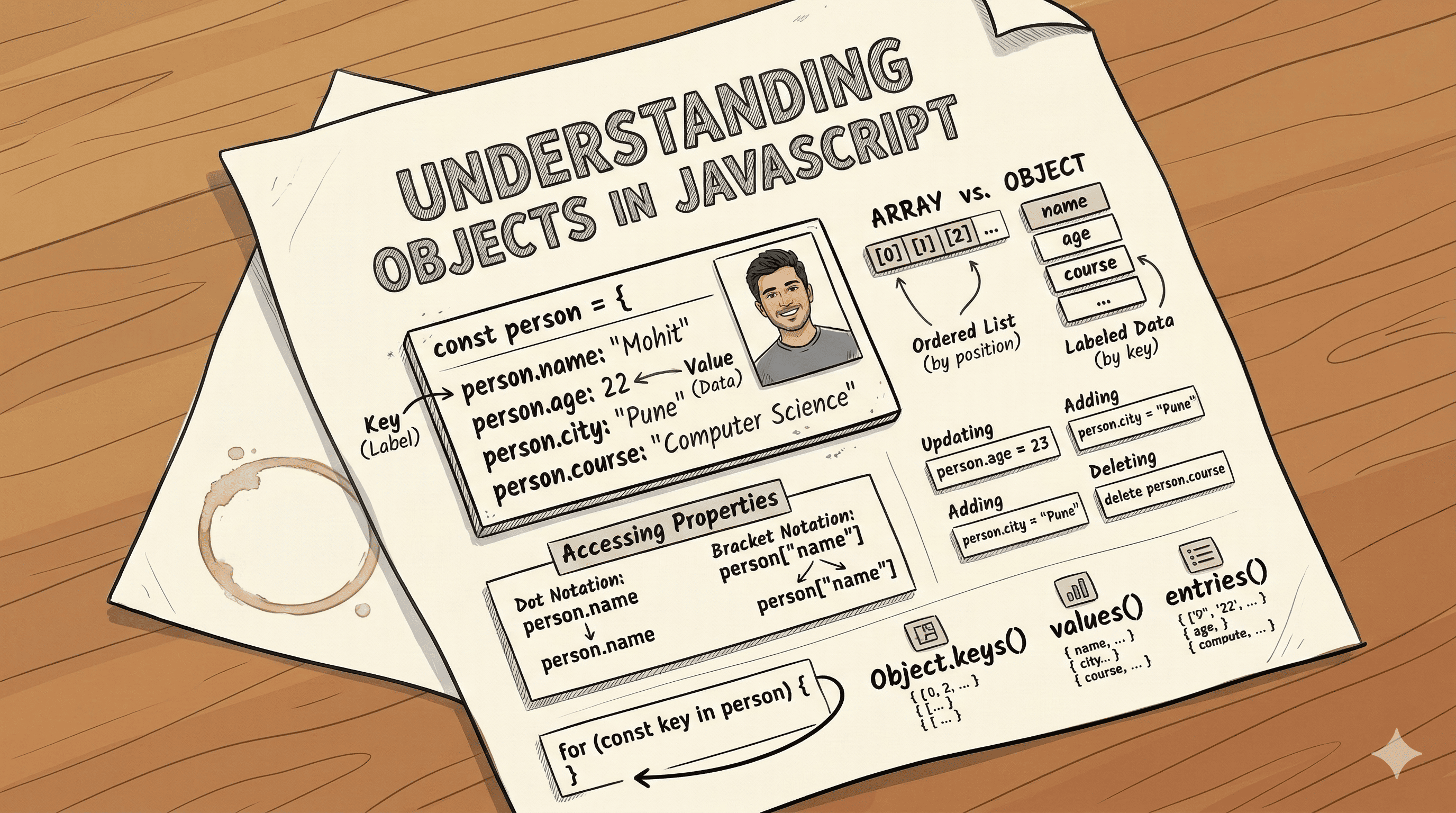
You have a friend named Mohit. He is 22 years old, lives in Pune, and is studying Computer Science. Now, how do you store all of that in JavaScript? You could create four separate variables. But that gets messy fast, especially when you have ten friends. What you really need is a way to group related data together under one name. That is exactly what objects are for.
What Is an Object and Why Do You Need One?
An object in JavaScript is a collection of related data stored as key-value pairs. The key is the label (like "name" or "age"), and the value is the actual data stored under that label.
Here is the mental model: think of an object like a contact card. One card holds everything you know about one person: their name, number, city, job. Everything is labeled, everything belongs together.
+---------------------------+
|         CONTACT CARD      |
+---------------------------+
| name    --> "Mohit"       |
| age     --> 22            |
| city    --> "Pune"        |
| course  --> "CS"          |
+---------------------------+
Without objects, you would do this:
const name = "Mohit";
const age = 22;
const city = "Pune";
const course = "CS";
With an object, you do this:
const person = {
  name: "Mohit",
  age: 22,
  city: "Pune",
  course: "CS",
};
Same data, but now it is grouped, labeled, and travels together as one unit. When you pass person to a function, you are sending everything about Mohit in one go.
Arrays vs Objects: What Is the Difference?
Before going further, let's clear up a common point of confusion. Arrays and objects both store data. The difference is in how you access that data and what kind of data makes sense to store.
ARRAY: Ordered list, accessed by position (index)
+-------+-------+-------+-------+
| [0]   | [1]   | [2]   | [3]   |
+-------+-------+-------+-------+
|"Mohit"| "Riya"| "Dev" |"Priya"|
+-------+-------+-------+-------+
  ^-- you need to know the position to get the value

OBJECT: Labeled data, accessed by key (name)
+----------+-----------+
|   Key    |   Value   |
+----------+-----------+
| name     | "Mohit"   |
| age      | 22        |
| city     | "Pune"    |
+----------+-----------+
  ^-- you use a meaningful label to get the value
Use an array when order matters and items are similar in nature, like a list of names or a list of scores. Use an object when you need to describe one thing with multiple labeled properties, like a person, a product, or a user profile.
Creating an Object
The most common way to create an object is with curly braces. This is called object literal syntax.
const person = {
  name: "Mohit",
  age: 22,
  city: "Pune",
};
The keys are written without quotes (unless the key has spaces or special characters), and each key-value pair is separated by a comma. The last item can have a trailing comma too, which is a common style convention.
Values can be any data type: strings, numbers, booleans, arrays, even other objects.
const student = {
  name: "Riya",
  age: 20,
  isEnrolled: true,
  scores: [85, 90, 78],
  address: {
    city: "Mumbai",
    pincode: "400001",
  },
};
That nested object inside address is completely valid. You will see this pattern constantly when working with API responses.
Accessing Properties
There are two ways to read a value from an object: dot notation and bracket notation.
Dot notation is what you will use 90% of the time. Clean, readable, and direct.
const person = {
  name: "Mohit",
  age: 22,
  city: "Pune",
};

console.log(person.name); // "Mohit"
console.log(person.age); // 22
Bracket notation is used when the key is dynamic, stored in a variable, or contains special characters.
console.log(person["city"]); // "Pune"

// When the key is in a variable
const key = "name";
console.log(person[key]); // "Mohit"

// When the key has spaces (you'd wrap it in quotes when defining it too)
const car = {
  "top speed": 200,
};
console.log(car["top speed"]); // 200
The bracket notation one trips up beginners sometimes. Just remember: dot notation when you know the key upfront, bracket notation when the key is dynamic or awkward.
person.name          --> Dot notation (static key)
person["name"]       --> Bracket notation (same result)
person[someVariable] --> Bracket notation (dynamic key)
Updating Object Properties
Updating a property is straightforward. You access it the same way you read it, then assign a new value.
const person = {
  name: "Mohit",
  age: 22,
  city: "Pune",
};

person.age = 23;
person.city = "Mumbai";

console.log(person);
// { name: "Mohit", age: 23, city: "Mumbai" }
This mutates the original object. The const keyword only prevents you from reassigning the variable to a completely new value. It does not make the object's contents immutable.
// This throws an error:
person = { name: "Someone else" }; // TypeError

// This works fine:
person.name = "Mohit Sharma"; // Mutation, not reassignment
If you want true immutability, Object.freeze() is an option, but that is beyond the scope of this post.
Adding and Deleting Properties
You can add new properties to an object at any time, even after it is created.
const person = {
  name: "Mohit",
  age: 22,
};

// Adding a new property
person.city = "Pune";
person.course = "Computer Science";

console.log(person);
// { name: "Mohit", age: 22, city: "Pune", course: "Computer Science" }
Deleting a property uses the delete keyword.
delete person.course;

console.log(person);
// { name: "Mohit", age: 22, city: "Pune" }
After delete, that key no longer exists in the object. Accessing it will return undefined. This is different from setting a property to null, which keeps the key present but with an empty value.
Looping Through Object Keys
Arrays have index numbers, so a regular for loop works fine. Objects have keys, so you need a different approach. The most common one is for...in.
const person = {
  name: "Mohit",
  age: 22,
  city: "Pune",
};

for (const key in person) {
  console.log(key, ":", person[key]);
}

// Output:
// name : Mohit
// age : 22
// city : Pune
Notice that inside the loop, you use bracket notation (person[key]) because key is a variable holding the property name. Dot notation would not work here since person.key would look for a property literally called "key".
Two other useful methods for working with object data:
// Get all keys as an array
console.log(Object.keys(person));
// ["name", "age", "city"]

// Get all values as an array
console.log(Object.values(person));
// ["Mohit", 22, "Pune"]

// Get key-value pairs as an array of arrays
console.log(Object.entries(person));
// [["name", "Mohit"], ["age", 22], ["city", "Pune"]]Object.keys(), Object.values(), and Object.entries() return arrays, which means you can then use map(), filter(), or forEach() on them. That is where objects and array methods start working together, and it is a pattern you will use constantly in real projects.
Object Structure at a Glance
const person = {
     |
     +-- Variable name (how you refer to this object)

  name: "Mohit",
  |       |
  |       +-- Value (any valid JS data type)
  +-- Key (always a string, quotes usually optional)

  age: 22,
  city: "Pune"
         |
         +-- Last property (trailing comma optional but recommended)
};
Assignment: Build a Student Object
Try this in your browser console. Take your time with each step.
// Step 1: Create a student object
const student = {
  name: "Priya",
  age: 20,
  course: "Web Development",
};

console.log("Original:", student);

// Step 2: Update one property
student.age = 21;
console.log("After update:", student);

// Step 3: Add a new property
student.city = "Bangalore";
console.log("After adding city:", student);

// Step 4: Print all keys and values using a loop
console.log("\n--- Student Details ---");
for (const key in student) {
  console.log(key + ": " + student[key]);
}

// Expected output:
// name: Priya
// age: 21
// course: Web Development
// city: Bangalore
Once you have that working, try deleting one property and looping again to see the change. Then try using Object.keys() to get just the keys as an array and loop over that instead.
Key Takeaways
- Objects store related data as key-value pairs. Arrays store ordered lists. They solve different problems.
- Create objects with curly braces and separate each key-value pair with a comma.
- Use dot notation for static keys, bracket notation for dynamic keys or keys with special characters.
- Updating a property works the same as accessing it, just with an assignment after it.
- New properties can be added at any time. Use
deleteto remove them. for...inloops over object keys. Inside the loop, use bracket notation to get the value.Object.keys(),Object.values(), andObject.entries()turn object data into arrays, which unlocks all the array methods you already know.
Objects are everywhere in JavaScript. API responses, configuration files, component props in React, database records - they all come back as objects. Getting comfortable with this structure early will make everything else feel a lot more natural.