Git Fundamentals: A Deep Dive into Version Control
A comprehensive walk through of my first webdev cohort orientation class where Piyush sir took us on an beautiful journey through Git fundamentals. Learn about the problems Git was created to solve, master essential commands like init, add, commit, reset, and revert, and peek inside the .git folder to understand how Git works internally with linked lists, objects, and refs.
A comprehensive walk through of my first webdev cohort orientation class where Piyush sir took us on an beautiful journey through Git fundamentals. Learn about the problems Git was created to solve, master essential commands like init, add, commit, reset, and revert, and peek inside the .git folder to understand how Git works internally with linked lists, objects, and refs.
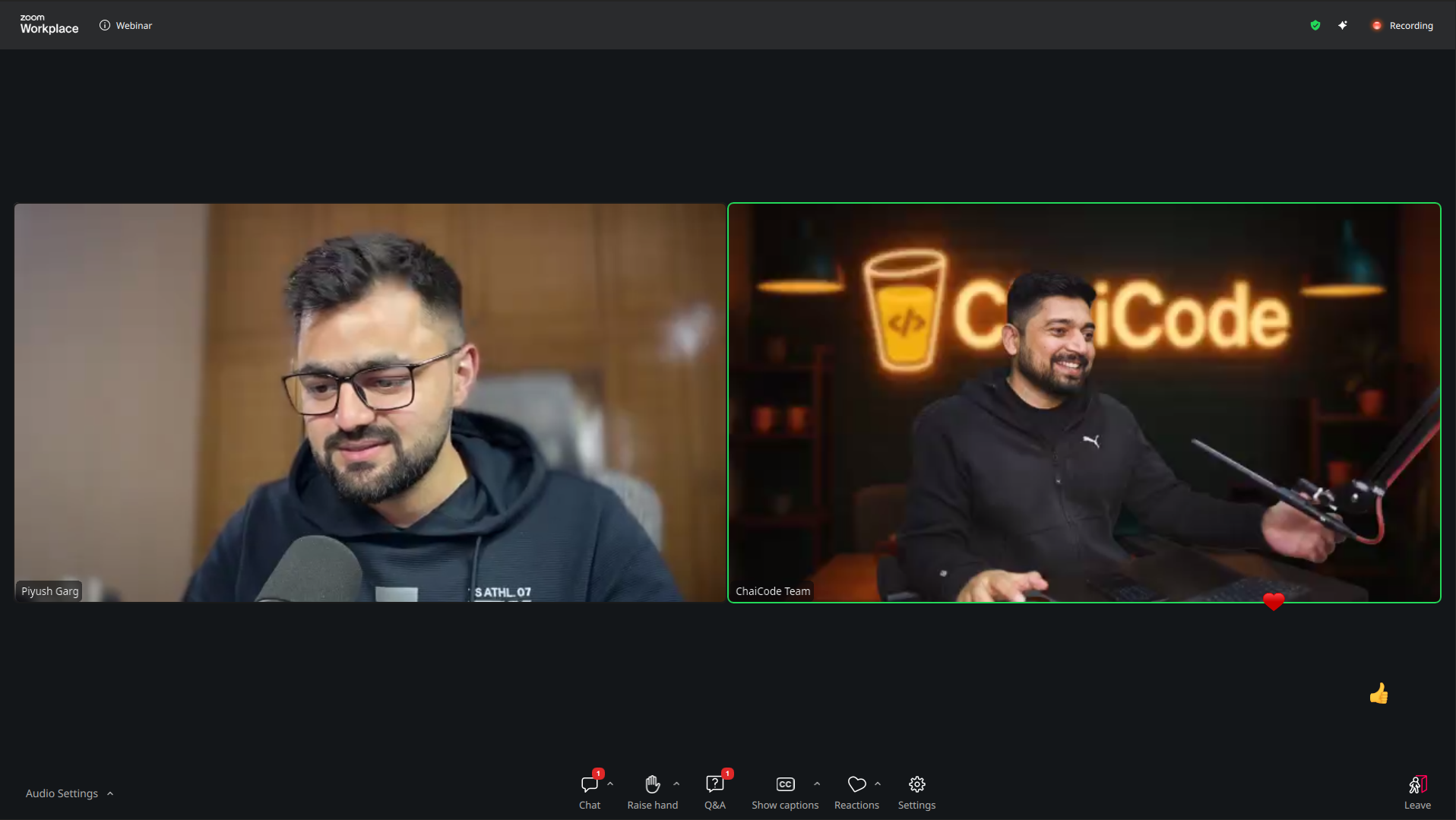
Today was special. Really special. I attended the first orientation class of my web development cohort with two mentors I deeply admire - Hitesh Choudhary and Piyush Garg. What was supposed to be a simple introduction to the cohort turned into an incredible deep dive into Git fundamentals, and I couldn't be more excited to share what I learned.
Setting the Stage
The session started with the usual stuff - discussing the upcoming cohort schedule, the infrastructure we'd be using, and what to expect when things officially kick off in January 2026. But then students started asking questions about Git, and Piyush sir, being the passionate educator he is, decided to take us into a deep dive through the world of version control.
The World Before Git
Before we dove into commands and technicalities, Piyush sir painted a picture of what software development looked like before Git. Imagine this: developers manually copying files, appending version numbers like project_v1.zip, project_v2_final.zip, project_v2_final_ACTUALLY_FINAL.zip (we've all been there, right?). Collaboration meant emailing code back and forth, hoping nobody overwrites someone else's changes.
It was chaos. Beautiful, organized chaos - but chaos nonetheless.
The Problems Git Was Born to Solve
Linus Torvalds, the creator of Linux, needed a better way to manage the Linux kernel's massive codebase. The existing version control systems weren't cutting it. So in 2005, he created Git to solve three fundamental problems:
1. Code Tracking
Every change needed to be tracked - who made it, when, and why. Without this, debugging and understanding code evolution became a nightmare.
2. Collaboration
Multiple developers needed to work on the same codebase simultaneously without stepping on each other's toes. Changes had to merge seamlessly.
3. Version Control
The ability to roll back to any previous state of the codebase was essential. Whether you introduced a bug or needed to reference old code, version control was the safety net.
Git solved all three problems elegantly, and that's why it's now the industry standard.
The Git Commands Arsenal
Piyush sir then walked us through the essential Git commands. Each one was explained with live demos, and the clarity was incredible.
git init - The Beginning
git initThis command initializes a new Git repository in your current directory. It creates that magical .git folder (more on this later) that contains all the metadata Git needs to track your project. Without git init, you're just working with regular files. With it, you've got version control superpowers.
What happens internally? Git creates the .git directory with subdirectories like objects, refs, hooks, and files like HEAD and config. This is the brain of your repository.
git status - The Pulse Check
git statusThink of this as asking Git, "What's going on?" It shows you:
- Which files are tracked vs. untracked
- Which changes are staged for commit
- Which branch you're currently on
- Any conflicts that need resolution
It's your diagnostic tool. I learned to run this command religiously - before and after almost every operation.
git add - Staging Changes
git add <filename>
git add .  # Add all changes
This is where you tell Git, "These are the changes I want to include in my next commit." It moves files from the working directory to the staging area (also called the index).
The three states of Git:
- Working Directory: Where you make changes
- Staging Area: Where you prepare changes for commit
- Repository: Where committed changes live permanently
git commit - Saving History
git commit -m "Your descriptive message here"This is the moment you save your staged changes to the repository's history. Each commit is like a snapshot of your project at a specific point in time. Piyush sir emphasized the importance of good commit messages - they're the story of your code.
Under the hood, Git creates a commit object with:
- A unique SHA-1 hash (40 characters)
- Author information
- Timestamp
- Commit message
- A pointer to the previous commit (parent)
- A pointer to the tree object representing your files
git log - The Time Machine
git log
git log --oneline
This command shows you the commit history. Each entry displays the commit hash, author, date, and message. It's like reading your project's diary.
git diff - Spotting the Changes
git diff              # Working directory vs. staging area
git diff <commit1> <commit2>  # Compare commits
This shows you exactly what changed between different states. It's invaluable for reviewing your work before committing.
git branch - Parallel Universes
git branch # List branchesBranches are Git's killer feature. They let you work on new features, bug fixes, or experiments without affecting the main codebase. Each branch is just a pointer to a commit - lightweight and fast.
git reset - The Undo Button
git reset --hard <commit> # Move HEAD, discard changes (dangerous!)Reset is powerful but needs care. It moves the current branch pointer to a different commit. The --hard flag is particularly dangerous because it discards changes permanently.
git revert - The Safe Undo
git revert <commit>Unlike reset, which rewrites history, revert creates a new commit that undoes a previous commit. This is safer for shared repositories because it doesn't alter existing history.
Peeking Inside the .git Folder
This was my favorite part. Piyush sir opened the .git folder and showed us what Git really is under the hood.
The Structure
.git/
├── objects/        # All your data (commits, trees, blobs)
├── refs/
│   ├── heads/      # Branch pointers
│   └── tags/       # Tag pointers
├── HEAD            # Points to current branch
├── config          # Repository configuration
├── hooks/          # Custom scripts for Git events
└── index           # Staging area information
Git is a Linked List (Sort Of)
Each commit points to its parent commit, forming a linked list-like structure. This is how Git maintains history. The HEAD pointer tells Git which commit you're currently looking at, and it usually points to a branch, which points to a commit.
Example:
HEAD -> main -> [commit C3] -> [commit C2] -> [commit C1] -> [initial commit]Objects: Blobs, Trees, and Commits
Git stores everything as objects:
- Blobs: Store file contents
- Trees: Store directory structures (point to blobs and other trees)
- Commits: Store metadata and point to a tree
Each object is identified by a SHA-1 hash of its contents. This makes Git incredibly efficient - identical content is stored only once.
Refs: Friendly Names for Hashes
Instead of remembering 3a7f8bc2..., we use branch names like main or feature/login. These are just files in .git/refs/heads/ containing commit hashes.
The Critical Dependency
Here's the mind-blowing part: if you delete the .git folder, all your version control history vanishes. Your files remain, but you lose all commits, branches, and history. It's like having amnesia. This drove home how important it is to push your code to remote repositories like GitHub.
The Quiz Challenge
To end the session, Hitesh sir organized a surprise quiz on everything we'd learned. Some questions were tricky and some fun!
I won't lie - I got a couple wrong. But that's the beauty of learning. Each mistake was a lesson, and the competitive environment made sure these concepts stuck.
Key Takeaways
-
Git is more than commands: Understanding the internals (objects, refs, linked structure) gives you confidence to troubleshoot and use Git effectively.
-
The staging area is your friend: It gives you control over what goes into each commit, enabling atomic, meaningful commits.
-
Branches are cheap: Don't be afraid to create branches. They're just pointers!
-
Reset vs. Revert: Use
resetONLY WHEN YOU KNOW WHAT YOU'RE DOING,revertis safe to use. -
The .git folder is sacred: Protect it. Back it up. Push to remote repositories.
Looking Ahead
This orientation class set the perfect tone for the cohort. If this is how we're starting, I can only imagine the depth we'll reach by the end. Hitesh sir and Piyush sir's teaching style - practical, detailed, and genuinely passionate - makes all the difference.
I'm already looking forward to the next session. If you're learning Git or just getting started with version control, I hope this breakdown helps. Git might seem intimidating at first, but once you understand the fundamentals, it becomes an indispensable tool in your development workflow.
Pro tip: Don't just read about Git. Open a terminal, create a test repository, and try these commands. Break things. Fix them. That's how it sticks.
Until next time, happy coding!